Screenshot AI
In a world where information moves quickly, most of us spend a large part of the day switching between websites, documents, dashboards, emails, PDFs, learning platforms, support portals, and internal business tools. The challenge is not just finding information. The real challenge is understanding it quickly enough to take action.
That is where Screenshot AI comes in.
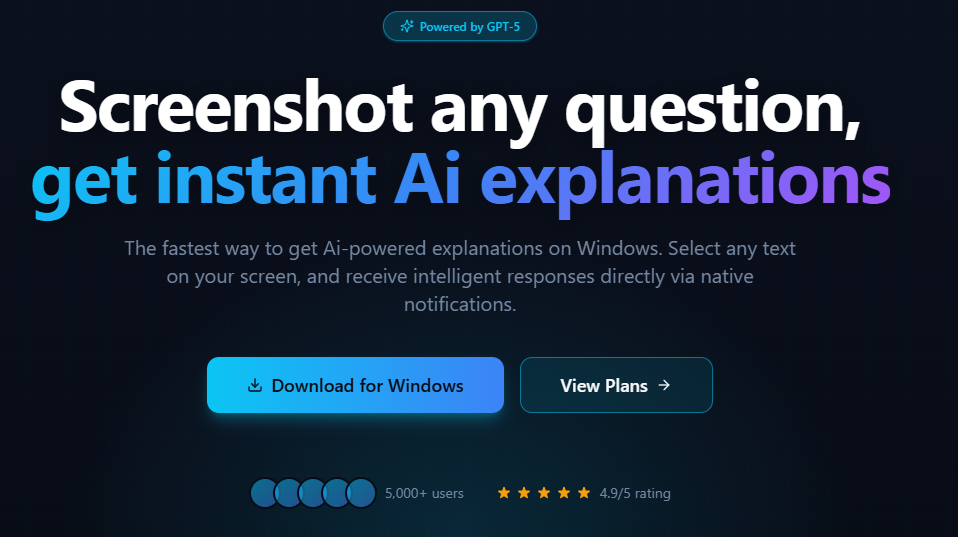
Screenshot AI is a desktop-first productivity app designed to help users capture what is on their screen and receive AI-powered answers almost instantly. Instead of copying text manually, typing long questions, or switching between multiple tools, users can simply capture a section of their screen and let Screenshot AI interpret the content for them.
Whether you are reading a technical document, reviewing a report, troubleshooting an error, studying online material, comparing pricing, or trying to understand something unfamiliar on your screen, Screenshot AI is built to reduce the time between seeing a problem and getting a useful answer.
What Is Screenshot AI?
Screenshot AI is a desktop application that allows users to take a screenshot of on-screen content and receive an AI-generated response based on what was captured.
The app is designed around a simple idea: sometimes the fastest way to ask a question is not to type it, but to show it.
Instead of manually explaining what you are looking at, Screenshot AI lets you capture the relevant part of your screen. The app then processes the screenshot and provides a helpful AI response. This creates a smoother workflow for users who deal with large amounts of visual or text-based information throughout the day.
The product is especially useful for people who frequently need quick explanations, summaries, troubleshooting help, or contextual answers from content already visible on their computer.
Why Screenshot-Based AI Assistance Matters
Traditional AI chat tools are powerful, but they often require users to copy, paste, format, or describe the information they need help with. That works well in many situations, but it can slow users down when the content is inside an image, a locked webpage, an application window, a PDF viewer, a dashboard, or a tool that does not allow easy text selection.
Screenshot AI helps solve this problem by making the screen itself the input.
This is useful because many real-world questions start with something visual:
You may see an error message and need to know what it means.
You may be looking at a chart and want a quick interpretation.
You may have a block of text and need it summarized.
You may be reviewing instructions and want the next step explained.
You may be studying and need a clearer explanation of a question.
You may be working in a dashboard and want help understanding a metric.
Screenshot AI is designed to fit into those moments without interrupting your workflow.
Built for Everyday Productivity
Screenshot AI is not limited to one industry or one type of user. It can be used across many everyday scenarios, including:
- Understanding technical errors or software messages
- Summarizing text from websites, PDFs, and documents
- Getting quick explanations for study or research material
- Extracting meaning from reports, charts, and dashboards
- Helping users understand unfamiliar terms or instructions
- Assisting with customer support, admin work, and online tasks
- Turning visual information into clear, readable answers
The goal is to make AI assistance feel more natural. Instead of stopping what you are doing, copying information, and opening a separate chat window, you can capture what matters and get help quickly.
A Desktop-First Experience
Many AI tools are built primarily for the browser. Screenshot AI takes a different approach by focusing on the desktop experience.
That matters because users often need help with content outside the browser, such as desktop software, system messages, local files, business applications, dashboards, remote tools, and other windows. A desktop-first workflow makes Screenshot AI more flexible because it can assist with whatever is visible on the screen.
This makes the app useful for students, professionals, IT users, business owners, support teams, researchers, and anyone who spends a lot of time working across different applications.
About the Author